Most people get stuck on two things when they set up VNC on Ubuntu. The client connects, but the screen stays black.
And it’s not clear whether port 5901 has to be opened to the internet. Both turned out to be simpler than I expected.
The black screen was an xstartup problem, not a network problem. And I never needed to open the port at all.
I needed to test a GUI on an Ubuntu server on AWS EC2, so I installed TigerVNC myself. This is how that went.
When do you actually need VNC on an Ubuntu server?
SSH is enough to run a server. VNC is for seeing what’s really on the screen, like a browser login flow or a GUI application’s state.
I normally manage servers over SSH. I didn’t add VNC because I wanted a remote desktop running all the time.
During one development and testing period, I needed to check a browser and GUI applications directly on an Ubuntu machine in the cloud.
Some of that work meant watching auth and redirect flows with my own eyes. Some of it meant checking what state a GUI application was actually in.
So I added TigerVNC and a lightweight desktop environment only for the period when I needed a GUI. If the job can be done from the CLI, I still don’t install VNC.
How I installed Xfce and TigerVNC
For a VNC remote desktop on Ubuntu, install a lightweight desktop environment (Xfce) and the TigerVNC server. Then set a connection password with vncpasswd.
My main environment at the time was Ubuntu 22.04 LTS.
A lot of older guides target 20.04, but standard support for 20.04 ended on May 31, 2025. If you’re setting this up from scratch today, I think 22.04 or 24.04 LTS is the right baseline.
Install the packages (Xfce, TigerVNC)
Update the package list first, then install the packages.
sudo apt update
sudo apt install -y xfce4 xfce4-goodies tigervnc-standalone-server
The install itself doesn’t take long. The step after it is where the time goes.
Set the connection password with vncpasswd
When the install finishes, create a password for VNC connections with vncpasswd.
vncpasswd
This password is separate from your Linux account password. It’s the one you type into the VNC client when you connect.
Why does TigerVNC show a black screen after connecting?
If you get only a black screen after connecting, it’s usually not the network. Check the execute permission on ~/.vnc/xstartup and the command it uses to start the desktop session first.
This was exactly the first problem I hit.
The VNC process was running, and the client connected. That’s why I didn’t suspect the network at first.
When I looked into it, ~/.vnc/xstartup wasn’t starting the desktop session properly. I fixed the execute permission and the session start command, started the VNC session again, and the desktop came up.
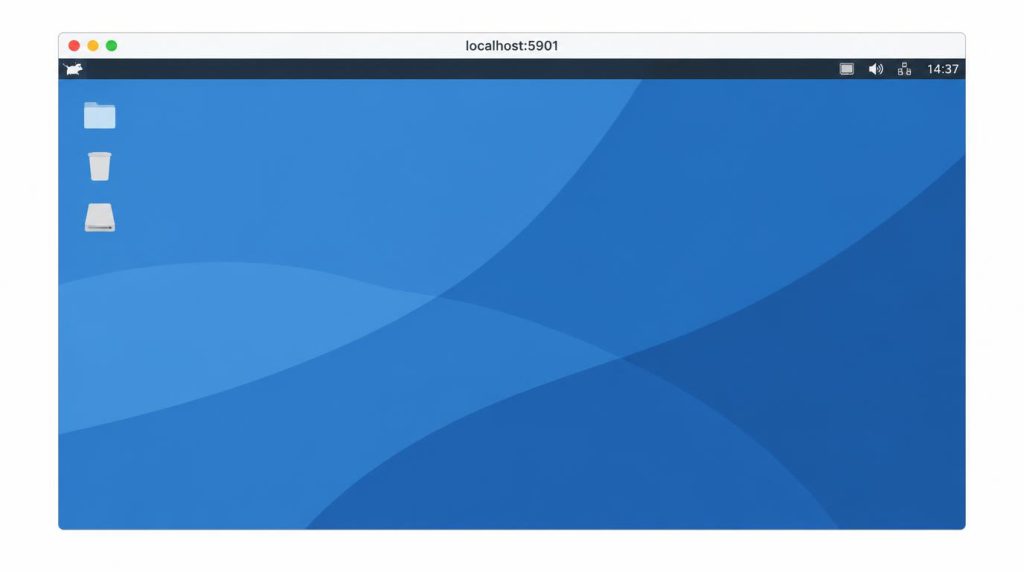
After that, I changed the order I troubleshoot in. First I separate two problems: the connection fails outright, or it connects and shows a black screen.
For the first, I check the network, the firewall, and the service status. For the second, I go to xstartup first.
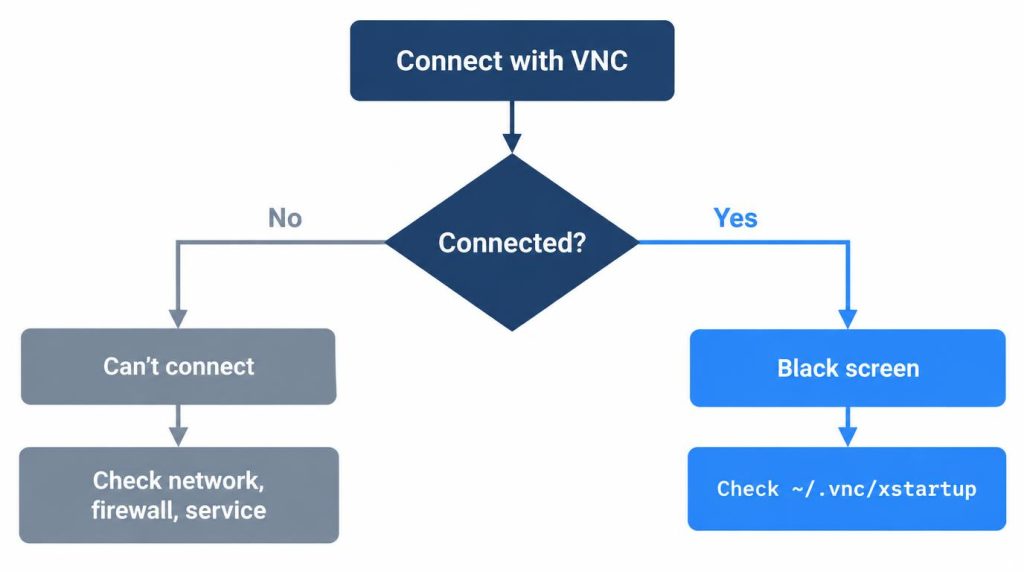
The first time I went through all of this, it took about 40–50 minutes including trial and error.
That was the total from installing VNC to actually connecting. Along the way came the desktop environment, xstartup, the black screen, fixing permissions and the session, and the SSH tunnel.
On the second machine I already knew the cause, and I was done in under 20 minutes.
Fix the xstartup permission and session start command
Give ~/.vnc/xstartup execute permission, and make sure it contains a command that starts the desktop session.
chmod +x ~/.vnc/xstartup
The file has to start the Xfce session in a way that actually runs. If it’s broken, the VNC server can be working fine while the screen stays black.
Do you need to open port 5901? Use an SSH tunnel instead
No, you don’t need to expose the VNC port (5901) to the internet. Tunnel a local port over SSH to the server, and you don’t have to add a VNC rule to your security group.
The RFB protocol that VNC uses doesn’t encrypt traffic by itself. Screen data and the authentication exchange travel as is.
That’s the reason to wrap it in an SSH tunnel instead of opening the port to the internet.
At one point I assumed I had to open port 5901, and I went to edit the AWS security group first.
In the end I didn’t. I used an SSH tunnel instead of exposing the VNC port to the internet.
The path was roughly localhost:5901 on my machine → SSH → localhost:5901 on the server. I never opened 5901 to the whole internet in the security group.
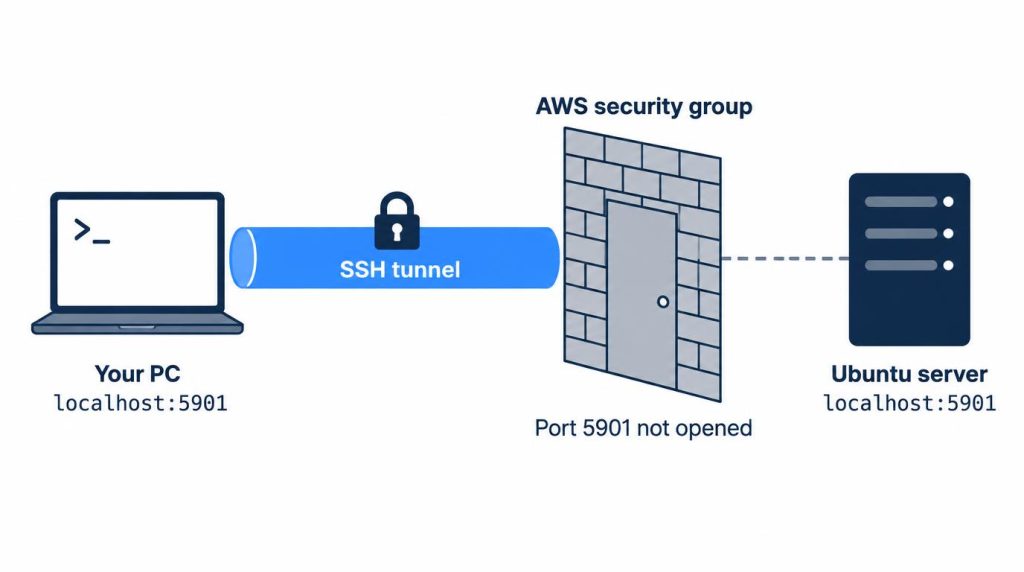
A broken VNC session was never a reason to expose port 5901 to the internet.
What I needed wasn’t a public port. I needed a working desktop session and an SSH tunnel.
How do you run the VNC server as a systemd service?
If you register the VNC server as a systemd service, you don’t have to rerun vncserver by hand after the server reboots.
Create a unit file in the form [email protected] and enable it with systemctl.
After that, the VNC session comes back up on its own after a reboot. You no longer have to SSH in and type the vncserver command each time.
sudo systemctl enable [email protected]
sudo systemctl start [email protected]
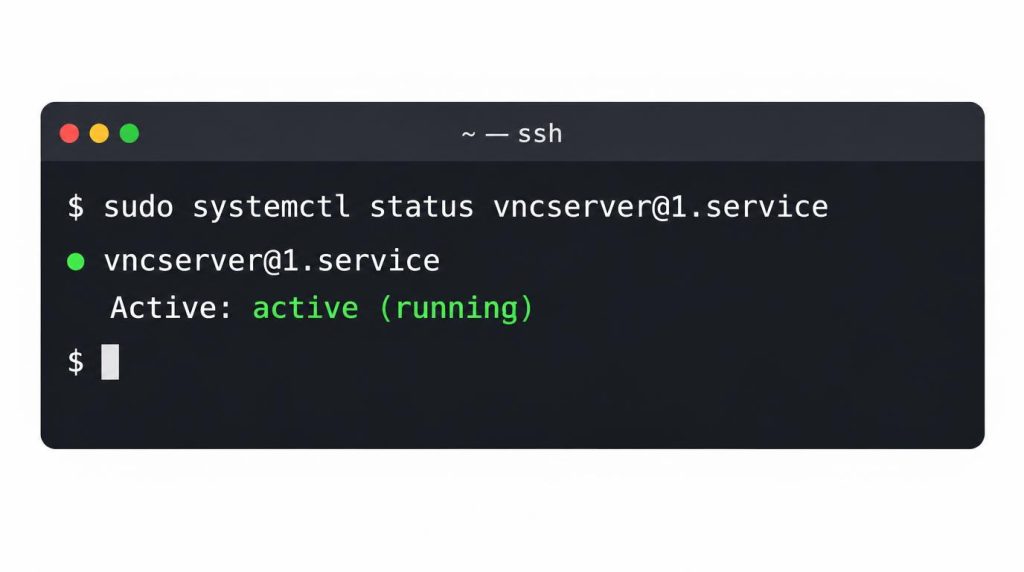
sudo systemctl status [email protected]
The status command tells you right away whether the session started properly.
Would I use VNC again? Alternatives and how I choose
For code work, use SSH or a remote dev environment; to check web UI results, use a headless browser. I think VNC only makes sense when you need the full Linux GUI.
I choose based on what the job is.
| Goal | Tool I’d pick |
|---|---|
| Server management, editing code | SSH, VS Code Remote SSH, devcontainer, code-server |
| Checking web UI output, browser automation | headless browser |
| Checking the Linux desktop session itself | VNC |
In short, code work goes over SSH, and checking what’s on screen goes to a headless browser. VNC is only for when I need the desktop session itself.
I’ve used X11 forwarding too. When I was working with several GUI windows for long stretches, there were times VNC was more comfortable.
That was because VNC keeps a complete desktop session.
So I’m not saying “an Ubuntu server needs a GUI.” If the work can be done from the CLI, I’d rather not install VNC at all.
These days I don’t keep VNC running on that EC2 instance. I build the GUI environment only when I need it.
Say there’s no reason to keep a VNC daemon and a desktop environment running on an internet-facing server. Then I think they only add attack surface and more moving parts to operate.
FAQ
VNC connects, but the screen is black. Why?
In most cases it’s the ~/.vnc/xstartup setup, not the network. Start by checking the execute permission (chmod +x) and whether the session start command is in the file.
Do I need to open port 5901 in my security group?
No. Tunnel a local port to the server over SSH, and there’s no need to expose 5901 directly to the internet.
Are there other ways to get remote access besides VNC?
It depends on what you need. For code work, SSH or a remote dev environment is simpler, and for checking web UI results, a headless browser.
Consider VNC only when you need to see the whole Linux GUI.
References
- RFC 6143: The Remote Framebuffer Protocol: primary source for VNC (RFB) not encrypting the session
- Canonical: Ubuntu 20.04 LTS end of standard support: primary source for the 20.04 end-of-support date (2025-05-31)
This article was localized from the Korean original: https://jjeongil.tistory.com/2090.