When Cursor rules aren’t working, check the rule’s type before its wording. A project rule only reaches Agent when its condition is met: always, a matching file pattern, a relevant description, or an @-mention. Most of my rules that didn’t take had one of two problems. The glob was too narrow, or the description was too vague.
A Cursor rule is a .mdc instruction file in .cursor/rules. When it applies, Cursor puts its contents at the start of the model’s context.
This comes from using Cursor at work. The doc facts below were checked against Cursor’s docs on November 3, 2026.
On this page
Why are my Cursor rules not being applied?
A rule you create isn’t automatically included. Mine failed on the rule type’s condition, not on the rule text.
I assumed anything in .cursor/rules would always apply. Then, in a Spring project, Agent kept adding a new dependency or a separate abstraction. A similar implementation already existed in the codebase.
The code didn’t match the project’s existing patterns. At first I thought the model was ignoring my rules.
Only after I checked which rules were actually applied did I see a condition problem. The rules that didn’t take were mostly of two types:
- Apply to Specific Files: my glob was too narrow. The file Agent actually needed to edit fell outside the pattern.
- Apply Intelligently: my description was too abstract. Agent didn’t judge the rule relevant to the task.
Cursor’s own FAQ gives the same two checks. For Apply Intelligently, make sure a description is defined. For Apply to Specific Files, make sure the pattern matches the files in context.
The same question comes up with CLAUDE.md in Claude Code: Claude Code Not Following CLAUDE.md? I Tested It 57 Times.
The four rule types, and the frontmatter behind them
Cursor’s rules docs list four project rule types: Always Apply, Apply Intelligently, Apply to Specific Files, and Apply Manually. Three frontmatter fields decide which one a rule becomes: alwaysApply, globs, and description.
| Type | Included when | Frontmatter |
|---|---|---|
| Always Apply | Every chat session | alwaysApply: true |
| Apply to Specific Files | A matching file is in context | alwaysApply: false + globs |
| Apply Intelligently | Agent finds the description relevant | alwaysApply: false + description |
| Apply Manually | You @-mention it |
alwaysApply: false, neither field |
With alwaysApply: true, globs and description are ignored. An Intelligently rule needs a description and no globs.
A well-formed file-pattern rule starts like this. The frontmatter sits between two --- lines at the very top of the file:
---
globs: src/components/**/*.tsx
alwaysApply: false
---

(Your rule text goes here, below the frontmatter.)
An Apply Intelligently rule swaps globs for a description, for example description: RPC service conventions and patterns for the backend (the docs’ own example).
.mdc vs .md, and the old .cursorrules file
Project rules must use the .mdc extension. Per the docs, a plain .md file in .cursor/rules is ignored, because it has no frontmatter. If you’d rather write plain markdown, Cursor points you to AGENTS.md in the project root instead.
Older projects may still keep everything in a single .cursorrules file in the root. Cursor’s older docs page (archived June 3, 2025) called it still supported but due to be deprecated, and recommended moving to Project Rules. The current rules page no longer mentions it. If your instructions live there, I’d move them into .mdc files so each one gets an explicit type.
Both of my failures map onto this table. The next two sections fix each one.
Fixing a glob that’s too narrow
If the file Agent edits sits outside the glob, the rule never loads.
The docs’ pattern table shows how easy that is to miss:
| Pattern | Matches |
|---|---|
*.ts |
.ts files in the root only |
**/*.ts |
.ts files in any directory |
src/** |
Everything under src/ |
docs/**/*.md, docs/**/*.mdx |
Two patterns, comma-separated |
So *.ts and **/*.ts look alike but cover very different files. Before blaming the model, I’d compare the glob against the path of the file Agent was actually editing.
Fixing a vague description
An Apply Intelligently rule depends on Agent reading the description and deciding the rule fits the task. An abstract description gives it little to match against.
Here is an illustration of the difference, not my actual description:
| Description | |
|---|---|
| Too vague | Coding conventions |
| Specific | Conventions for Spring service and repository classes: reuse existing patterns, no new dependencies |
The second names the area and the task, so there is something to match a request against. The docs’ general advice points the same way: avoid vague guidance and write rules like clear internal docs. If a rule must apply no matter what the task looks like, a description is the wrong tool; make it Always Apply or give it a glob.
Claude Code chooses skills by their description too. Claude Code custom commands to skills covers that case.
How to check whether a rule actually loaded
The docs say Customize → Rules in the sidebar lists all rules and their status. That’s where I’d start when a rule seems to do nothing: confirm the rule is there, then check its type against the table above.
A few scope limits also explain “my rule does nothing” moments:
- User Rules are set in Customize → Rules and apply across all projects. The docs say they’re used by Agent (Chat).
- Tab: the docs’ FAQ says rules don’t affect Cursor Tab or other AI features.
- Order: Team Rules, then Project Rules, then User Rules. All applicable rules are merged, and earlier sources win when they conflict. Team Rules are only on Team and Enterprise plans.
So a user rule that seems to fail during Tab completions is working as documented.
One more cause isn’t a rule problem at all. While using Auto, I once noticed the editing style and answers had shifted a little. I took it for a simple model update, and later confirmed that Auto doesn’t always stick to the same model. Since then I use Auto for simple tasks and pick the model myself when reproducibility or model traits matter.
A quick checklist
- The file ends in
.mdcand sits in.cursor/rules, not a plain.mdor a root.cursorrules. - The frontmatter is the first thing in the file, between two
---lines. - The rule’s fields match the type you meant (see the table above).
- For a file-pattern rule, the glob matches the path of the file Agent is editing (
**/for any directory). - For an Apply Intelligently rule, the description names the area and the task.
- Customize → Rules lists the rule.
- You’re testing in Agent, not Tab.
- A Team Rule isn’t overriding it.
- If behavior changed suddenly, check whether Auto picked a different model.
Keep rules short: the two I actually use
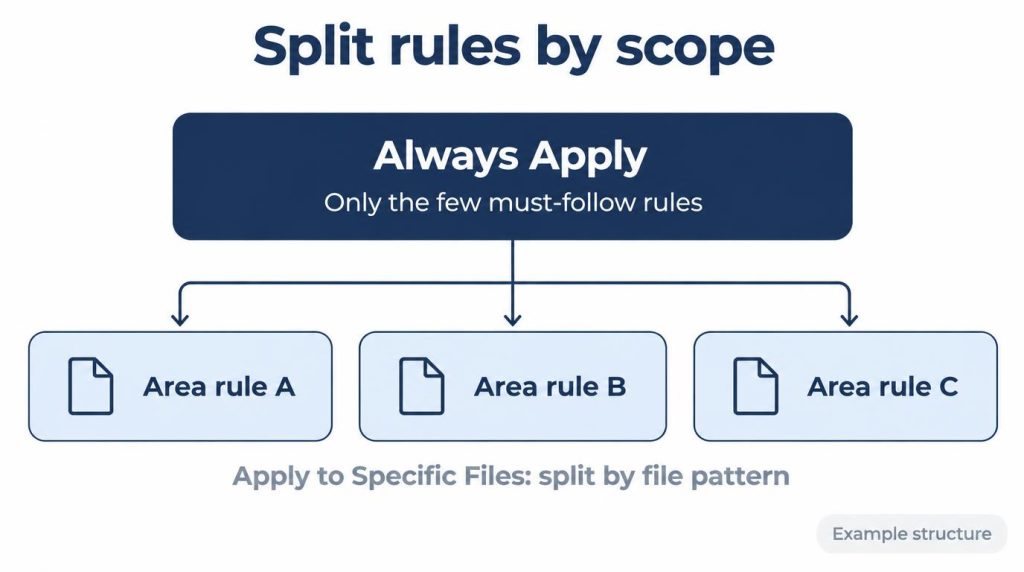
What worked better for me was writing only what the AI keeps getting wrong in my project, briefly and clearly. The docs recommend keeping each rule under 500 lines and splitting large rules into smaller ones. They also say to add rules only when you notice Agent making the same mistake repeatedly, which matches how I write mine.
The mistake I saw most was building something a new way when an implementation pattern already existed. So my project-wide Always Apply rule is one sentence, with no long explanation:
Search for existing implementation patterns first. If the same pattern exists, don’t create a new structure or dependency.
Layer-specific rules went into Apply to Specific Files. This one only matches the test file glob:
When editing tests, follow the existing tests’ fixture/mocking patterns as they are, and don’t add a new test library.
A few must-follow rules sit in Always Apply. Everything area-specific gets its own scope.
References
- Cursor Docs: Rules: rule types, frontmatter examples,
.mdcfiles, glob patterns, Customize → Rules, User Rules, Tab FAQ, precedence, 500-line and “same mistake repeatedly” advice (checked November 3, 2026) - Cursor Docs (older page, archived June 3, 2025): Project Rules:
.cursorrulesdescribed as legacy; the live URL now redirects to the current docs - Cursor Docs: Models: Auto model selection
Related posts
- AI Agent Calling the Wrong Tool? I Cut It from 6/20 to 1/20
- RAG Retrieval Failure vs Generation Failure: Top-k First
- Claude Outage Fallback: Request Failed, Files Still Changed
- HTTP 402 Payment Required: x402 Agent Spending Limits
I first wrote this in Korean on my blog: https://jjeongil.tistory.com/3171.