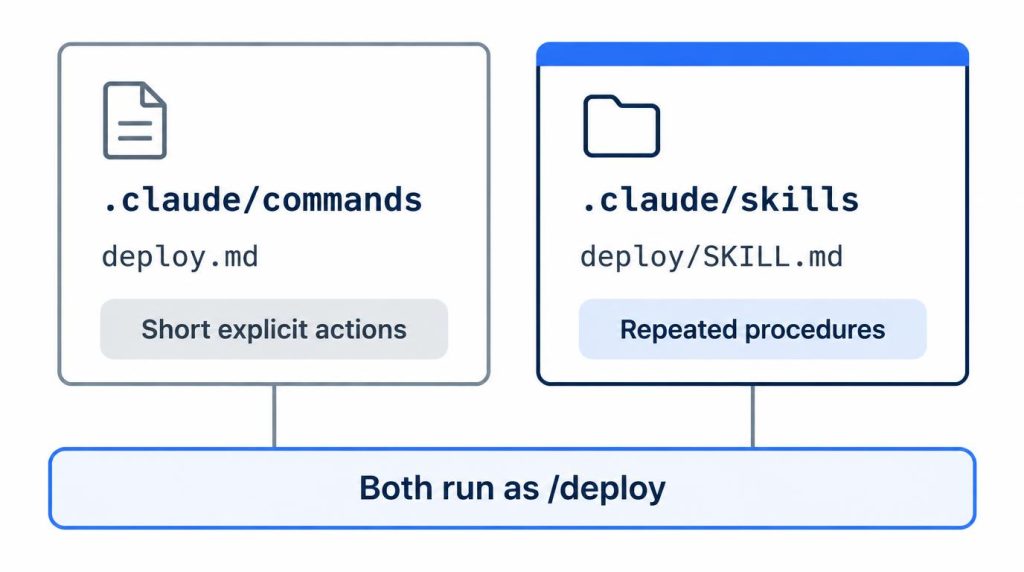
Older Claude Code guides call project commands as /project:name. That form fails today because custom commands were merged into skills, and both are called by plain name. As of November 2, 2026, .claude/commands/deploy.md and .claude/skills/deploy/SKILL.md both run as /deploy, and the commands and skills docs don’t mention a /project: prefix.
Your old command files still work. You just call them by name.
I went through these changes myself: npm to the native installer, and commands to skills. This post sticks to what I ran into and what the official docs say today.
On this page
- Why does /project: fail in Claude Code?
- Custom commands vs skills: what’s different now
- Moving my commands to skills: what broke
- Skill not triggering or not showing up?
- Install with the native installer, not npm
- command not found after switching installs
- Connecting MCP servers: claude mcp add vs /mcp
- MCP plus skills: 10 minutes down to 2–3 per document
Why does /project: fail in Claude Code?
Commands no longer carry a scope prefix. You type / plus the file or folder name, and up to six skills can be stacked in one message, as in /skill-a /skill-b do XYZ.
A colon still shows up, but for other reasons. A command in a subfolder, such as .claude/commands/frontend/component.md, becomes /frontend:component. A plugin skill runs as /plugin-name:skill-name.
So the colon now names a folder or a plugin. It no longer names a scope like “project.”
The 20–30 minutes I lost to an old note
I ran a command in the /project:... form, copied from notes I’d written earlier. It didn’t behave the way I expected.
At first I wondered whether the install had broken. I dug through the command file location, the YAML, and the runtime environment.
The install was fine. I had mixed up my old way of using Claude Code with how my current setup works.
I simply didn’t know the /project: form no longer fit. Finding that out cost me about 20–30 minutes.
It left me with one habit. Before I copy a command from an older Claude Code tutorial, I check which version and directory layout it assumes.
Custom commands vs skills: what’s different now
A Claude Code skill is a folder with a SKILL.md file inside. That file holds instructions Claude follows when you type /name, or when Claude decides the task matches.
The skills docs call a single Markdown file in .claude/commands/ “the older format,” and it still works. For new work they suggest a skill, because a skill folder can also hold supporting files.
.claude/commands |
.claude/skills |
|
|---|---|---|
| Format | One .md file |
Folder with SKILL.md |
| Status | Older, still works | Current |
| Call | /name |
/name |
| Extra files | No | Yes |
If a command and a skill share a name, the skill wins. Claude Code loads the skill and skips the command file.
How I split the two
Here’s how I frame it. If MCP (Model Context Protocol) decides how far Claude can reach, skills decide how Claude works with that reach.
In my setup, a command runs one fixed action as written. A skill holds a whole repeated work procedure, along with its judgment criteria.
If you’re starting fresh, I think skills fit better the more repetitive the work is.
Moving my commands to skills: what broke
I had been running a little over 10 commands in .claude/commands for repeated work. This was on a different work project, and I moved them to skills.
It wasn’t a simple file move. It took about an hour and a half.
Three things went wrong along the way:
- Vague descriptions. I first wrote lines like “help with PR-related tasks.” Claude sometimes used general reasoning instead of the skill it should have used.
- Commands built around user input. I had to rewrite their descriptions and trigger conditions as skills.
- A relative path. A part that assumed relative paths broke once.
Skill selection became much more stable only after I rewrote the descriptions in concrete terms. Claude uses the description to judge when a skill applies.
I haven’t removed .claude/commands completely. Commands handle short explicit actions, and skills hold reusable work knowledge.
Moving one command, per the docs
The skills docs describe the target layout. As steps, it looks like this:
- Create
.claude/skills/<name>/SKILL.md. The folder name becomes/nameunless you setnamein the frontmatter. - Paste the command’s body below the frontmatter.
- Write a concrete
description. Addwhen_to_usefor extra trigger context. - Keep
$ARGUMENTSif the command took input. Skills also accept$0,$1, and namedarguments. - Decide what happens to the old file. If a command keeps the same name, the skill takes precedence and the command stops running.
Step 3 is the part I had to rewrite in my own migration.
Skill not triggering or not showing up?
Start with the description. Per the skills docs, Claude matches your request against each skill’s description, plus when_to_use if you set it.
That text is truncated at 1,536 characters in the skill listing, counting both fields. My problem was vagueness: with the “PR-related tasks” line, Claude still skipped the skill at times.
A separate test on agent tools, where overlapping descriptions led to wrong picks, is in why an AI agent kept calling the wrong tool.
A few settings also change whether Claude loads a skill on its own:
disable-model-invocation: truestops Claude from loading the skill by itself. You can still type/name.user-invocable: falsehides it from your/menu, so only Claude calls it.
If a new skill doesn’t appear in the / menu, run /skills to list what Claude Code found. /reload-skills re-scans skill and command folders without a restart.
Install with the native installer, not npm
As of November 2, 2026, the setup docs mark the native installer “Recommended” and list npm under “Advanced installation options.” npm is the fallback if you already have a Node environment.
On macOS, Linux, and WSL, it’s one line:
curl -fsSL https://claude.ai/install.sh | bash
Windows uses irm https://claude.ai/install.ps1 | iex in PowerShell. Homebrew and WinGet packages also exist, but they don’t update on their own by default.
| Method | Command | Updates |
|---|---|---|
| Native | curl ... install.sh \| bash |
Automatic |
| npm | npm install -g @anthropic-ai/claude-code |
Self-updates if writable |
| Homebrew | brew install --cask claude-code |
Manual by default |
The npm package requires Node.js 22 or later, up from 18 before. The docs also say it installs the same native binary, which doesn’t use Node at runtime.
After switching, the friction was management, not speed
Switching doesn’t make responses faster. What changes is how you manage the tool.
I first installed Claude Code with npm in a Node.js environment. It kept bothering me that a dev tool was treated like a package in a Node project.
Every time I changed Node versions, I had to check which npm environment it lived in. That problem went away after I moved to native.
Claude Code now gets managed like a system tool. The switch took about 10–15 minutes, including checking the install path and cleaning up the old npm install.
The install itself, with sign-in, takes under 10 minutes. Making it usable for work took about 2 hours on the first day.
That covered connecting MCP, setting project rules, adding skills, and tuning permissions. So it’s roughly 10 minutes to run it and 2+ hours to make it a work environment.
Old commands in setup guides that changed
A few lines from older guides also need updating:
- The executable is
claude, notclaude-code. /initcreates a starterCLAUDE.md. Whether Claude actually follows it is a separate question, which I covered in a 57-run CLAUDE.md test./terminal-setupinstalls a Shift+Enter key binding for new lines in VS Code, Cursor, Alacritty, Zed, and Devin Desktop. In Apple Terminal, it enables Option+Enter instead.- Shift+Tab cycles permission modes:
default, thenacceptEdits, thenplan. The permission modes page explains whenautoandbypassPermissionsjoin the cycle.
If the permission prompts are what slows you down, here’s how I cut repeated permission prompts in Claude Code, Codex, and Antigravity.
command not found after switching installs
Run claude doctor before anything else. command not found and PATH errors mostly show up when traces of an old npm install are left behind.
The other common cause, per the docs, is that ~/.local/bin isn’t on your PATH yet.
Right after I changed install methods, I used it whenever I suspected the old npm install and the current executable were tangled. It shows the install path, the executable location, and version details in one place.
Per the setup docs, it prints read-only diagnostics without starting a session. That includes install health, settings-file errors, and warnings with suggested fixes.
If that doesn’t settle it, the install troubleshooting page covers which -a claude, the ~/.local/bin PATH fix, and removing a leftover npm install.
Connecting MCP servers: claude mcp add vs /mcp
You add servers on the CLI with claude mcp add. Inside a session, /mcp checks status, handles OAuth sign-in, turns servers on or off, and reconnects them.
Documentation-search servers like context7 (upstash) are a common first example.
Connecting is only access
Connecting a Jira MCP server won’t produce tickets in the format you want. What you gain is access to Jira, not a way of working.
I currently use three connected MCP servers. I open the /mcp status screen more often than I run the add command.
A screenshot of the add command only proves I set something up. The /mcp screen shows which outside systems I can reach right now.
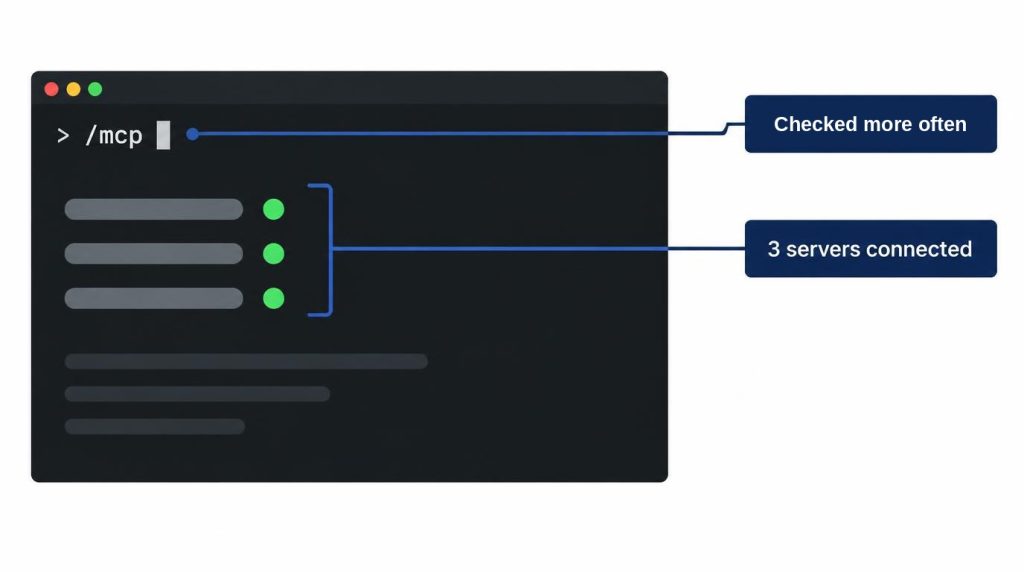
/mcp list with three connected servers, names hidden (AI-recreated screen).I don’t think connecting everything you can is a good setup. Around three is manageable for me. Past that, the tools themselves just multiply.
My rule for now is to open only the capabilities I need.
MCP plus skills: 10 minutes down to 2–3 per document
It isn’t a choice between the two. Using MCP for reach and skills for the procedure is what actually proved useful for me.
The target was documents with a set format: PR descriptions, Jira tickets, and wiki pages. Writing one by hand took about 10 minutes.
After I fixed the template and procedure in a skill, it dropped to 2–3 minutes. That includes final review and edits, at an average of 4–5 documents a day.
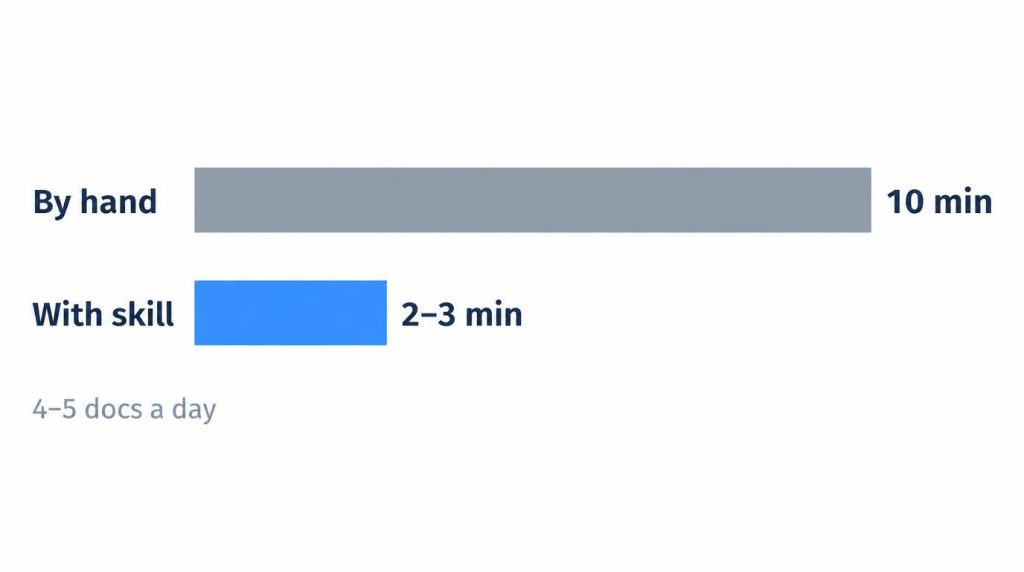
This isn’t an average across all my work. It’s what I measured on those repeated tasks at the time.
Writing that needs a lot of judgment, like a design document, takes much longer.
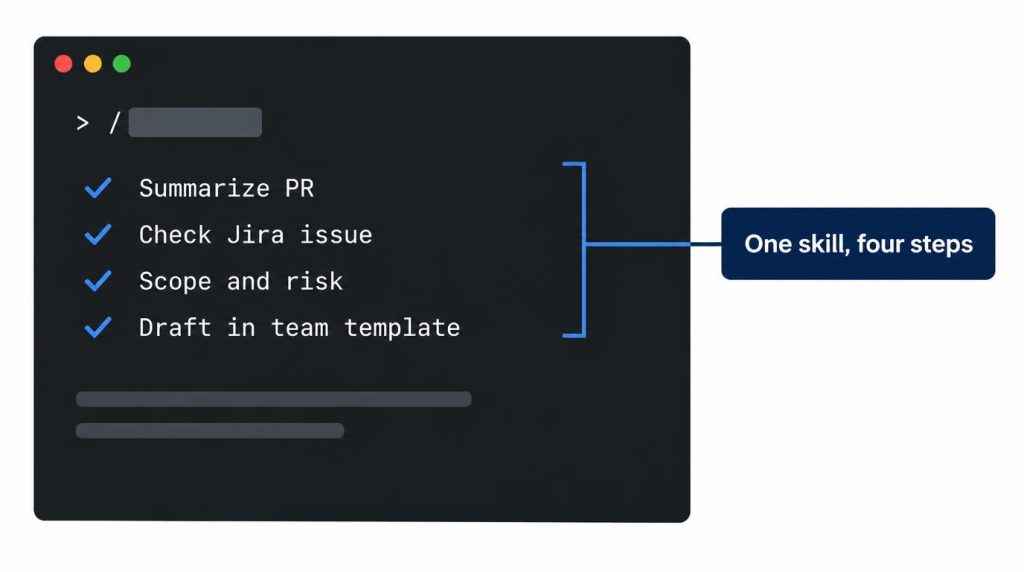
The skill holds the actual workflow:
- Summarize the PR.
- Check the related Jira issue.
- Lay out the change scope and risk.
- Write the document in the team template.
Reaching Jira through MCP and writing documents by this procedure are separate problems.
References
- Claude Code Docs: Advanced setup: native install as “Recommended,” npm under “Advanced installation options” with Node.js 22+, npm installing the same native binary, update behavior,
claude doctor(checked November 2, 2026) - Claude Code Docs: Troubleshoot installation and login:
command not found, PATH fix for~/.local/bin, conflicting installations (checked November 2, 2026) - Claude Code Docs: Commands: stacking up to six skills,
/init,/terminal-setup,/mcp,/skills,/reload-skills(checked November 2, 2026) - Claude Code Docs: Skills: commands merged into skills,
.claude/commandsas the older format, name precedence, subfolder and plugin prefixes, frontmatter fields, the 1,536-character listing cap, arguments (checked November 2, 2026) - Claude Code Docs: Permission modes: the Shift+Tab cycle (checked November 2, 2026)
- Claude Code Docs: MCP:
claude mcp addtransports and scopes, SSE deprecation, what/mcpdoes (checked November 2, 2026) - context7 (upstash): the MCP server used as an example above
Related posts
- AI Agent Calling the Wrong Tool? I Cut It from 6/20 to 1/20
- RAG Retrieval Failure vs Generation Failure: Top-k First
- Claude Outage Fallback: Request Failed, Files Still Changed
- HTTP 402 Payment Required: x402 Agent Spending Limits
I first wrote this in Korean on my blog: https://jjeongil.tistory.com/3137.