If ./gradlew clean build passes in the terminal but STS still shows cannot be resolved to a type, your build is fine. The IDE’s copy of the Gradle project is out of date. Right-click the project and run Gradle → Refresh Gradle Project.
That’s what fixed it for me after a build.gradle dependency change. Project → Clean did not.
STS (Spring Tools for Eclipse) is the Spring team’s IDE distribution built on Eclipse. As of November 6, 2026, the Spring Tools page lists version 5.4.0, built on Eclipse 4.41.
The symptom: red markers on a dependency that exists
I hit this while developing a Spring Boot Gradle project I had imported into STS. I had just changed a dependency in build.gradle.
The Java editor showed ... cannot be resolved to a type. The imports had markers along the lines of The import ... cannot be resolved.
The library wasn’t actually missing. At the same moment, ./gradlew clean build in the terminal was fine.
STS acted as if it couldn’t find a dependency that was clearly there.
First split: does the terminal build pass?
Run the build from the terminal, not from the IDE’s Run button. The result tells you which side to debug.
./gradlew clean build
| Terminal result | Suspect | Next step |
|---|---|---|
| Passes | IDE project model, classpath, JDK | Refresh Gradle Project |
| Fails | Build files, dependency declarations | Fix the build config |
When the terminal fails, read the cause line in the log first. When it passes and only the IDE is red, look at what the IDE is holding. If the problem is the Gradle JVM instead, see a separate Gradle JVM post.
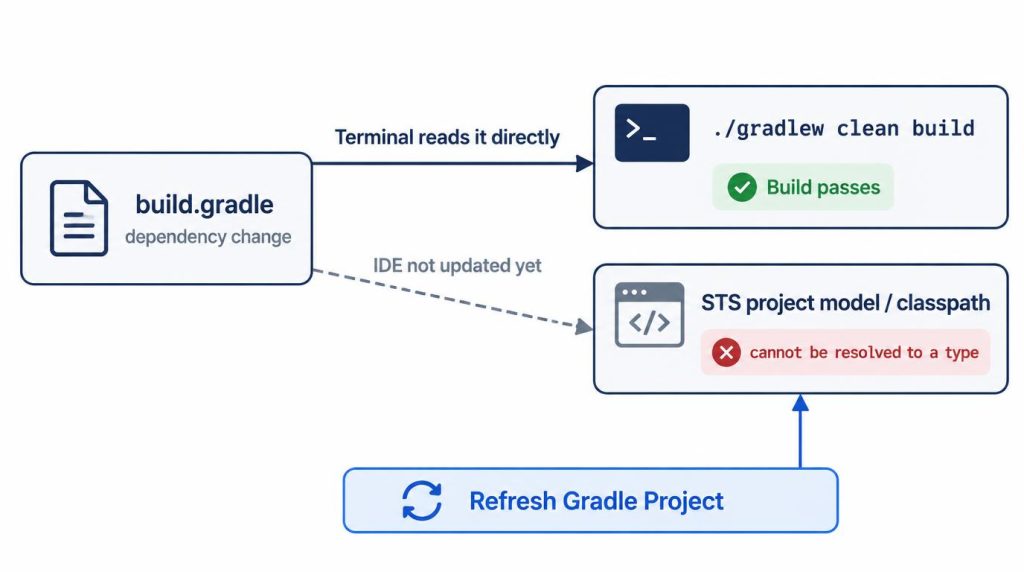
What I checked before the fix
At first, I went digging through the build settings too. I rechecked the dependency declarations and module settings in build.gradle.
Then I wondered if the terminal passed only because of old build output. So I ran clean build again.
Compile and test still passed. The build script didn’t look like the cause.
That narrowed it to a possible mismatch. The Gradle project model and classpath STS was holding could have drifted from the current Gradle state.
Refresh Gradle Project: the order that worked
Here’s what I did, in order:
- Ran Project → Clean. The markers stayed.
- Reran
./gradlew clean buildin the terminal. It passed. - Right-clicked the project → Gradle → Refresh Gradle Project. The errors disappeared.
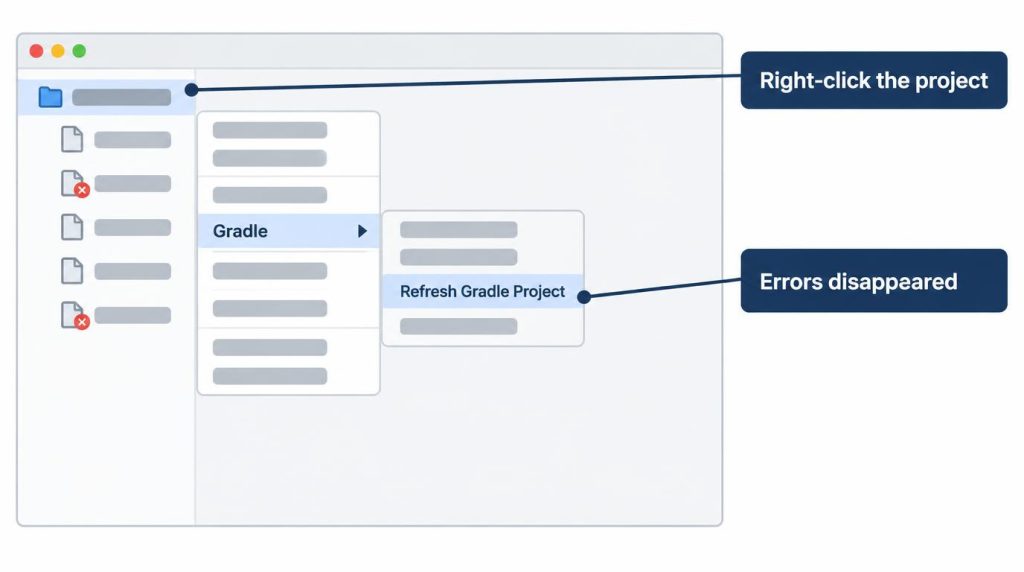
In my STS, the menu was Gradle → Refresh Gradle Project. The Eclipse Foundation’s Buildship introduction describes the same command in the project’s context menu. Buildship is the Eclipse plugin that imports and syncs Gradle projects.
It took me roughly 30 to 40 minutes to confirm that the IDE and Gradle were looking at different states.
Why didn’t Project → Clean fix it?
Project → Clean didn’t clear the markers in my case.
In my case, STS’s classpath state didn’t catch up right away after the dependency change.
My rule since then
If the terminal build also fails, I start with the project and build settings. If the terminal passes and only the IDE fails, I start with the IDE’s Gradle project model, JDK, and classpath.
A failing Gradle build and an IDE that sees the Gradle state differently are two different problems.
A file permission problem I once hit in Jenkins was a similar split. The cause was the execution environment, not Gradle itself.
Three fixes I avoid
I don’t use these.
- Deleting
pom.xml: I don’t remove it until the build files tell me why it’s still there. - Moving only the IDE to the latest Gradle: results can drift from the terminal and CI. The baseline is the wrapper version the project sets, and the IDE should match it.
- Generating
.projectwithgradle eclipse: the Gradle Eclipse plugin docs (version 9.8.2, checked November 6, 2026) say theeclipseandcleanEclipsetasks are deprecated and will be removed in Gradle 10. The same page says modern Eclipse imports Gradle projects through Buildship without those files.
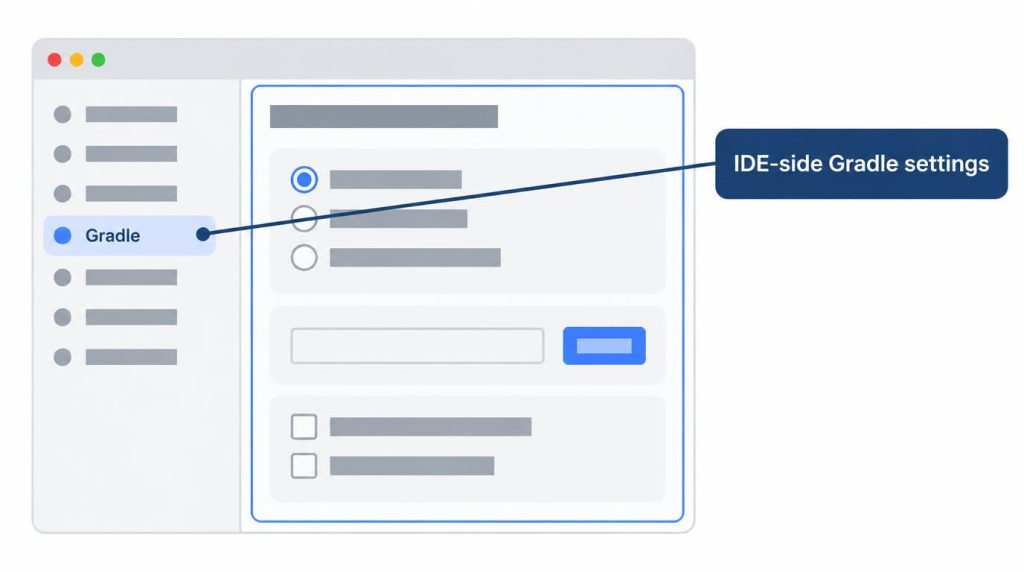
Is Gradle User Home the Gradle install path?
No. Gradle User Home is where Gradle stores per-user data, such as caches and Wrapper distributions. It is not where Gradle is installed, so don’t point it at an installation folder.
When the cause is the JVM, not the classpath
Gradle JVM problems in the IDE are out of scope here.
My case where IntelliJ ran Gradle on the wrong JVM is in the post linked above. That wasn’t an STS error, so I keep it out of this post.
These days I mostly use IntelliJ. Keeping an eye on STS’s project refresh and classpath state as multi-module projects grew was part of the reason, but not the only one. Spring and Java navigation, refactoring, and Gradle integration fit IntelliJ better for me overall.
References
- Eclipse Foundation, Introducing Buildship: the Refresh Gradle Project command
- Gradle docs, Directory layout: definition of Gradle User Home
- Gradle docs, Eclipse plugin: deprecation of the
eclipsetasks (Gradle 9.8.2 docs) - Spring Tools: current version and Eclipse base
Related posts
I first wrote this in Korean on my blog: https://jjeongil.tistory.com/2876.