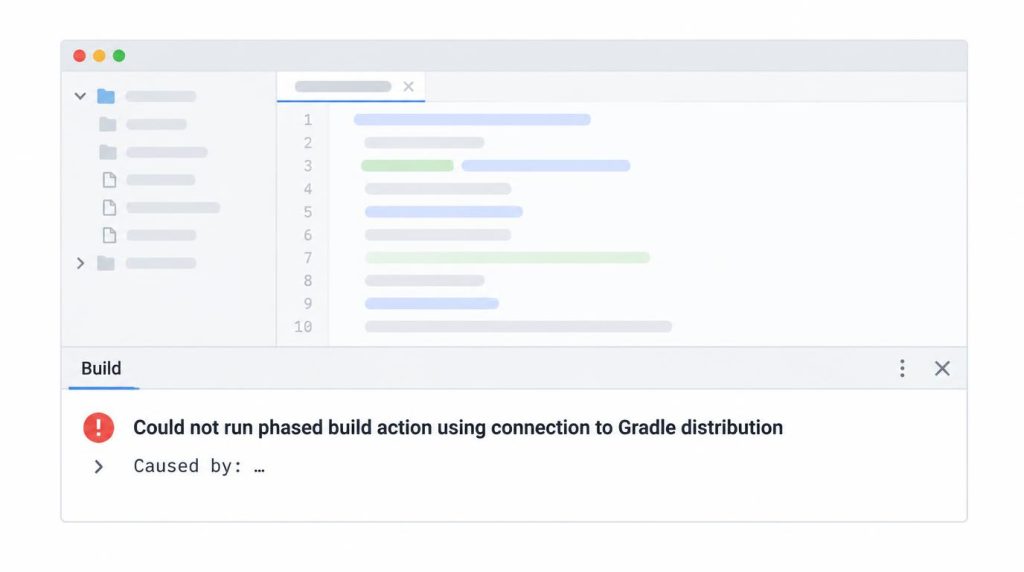
“Could not run phased build action using connection to Gradle distribution” is a generic sync error. When I hit it, the cause wasn’t the cache or the Gradle distribution. It was the JVM Gradle was actually running on.
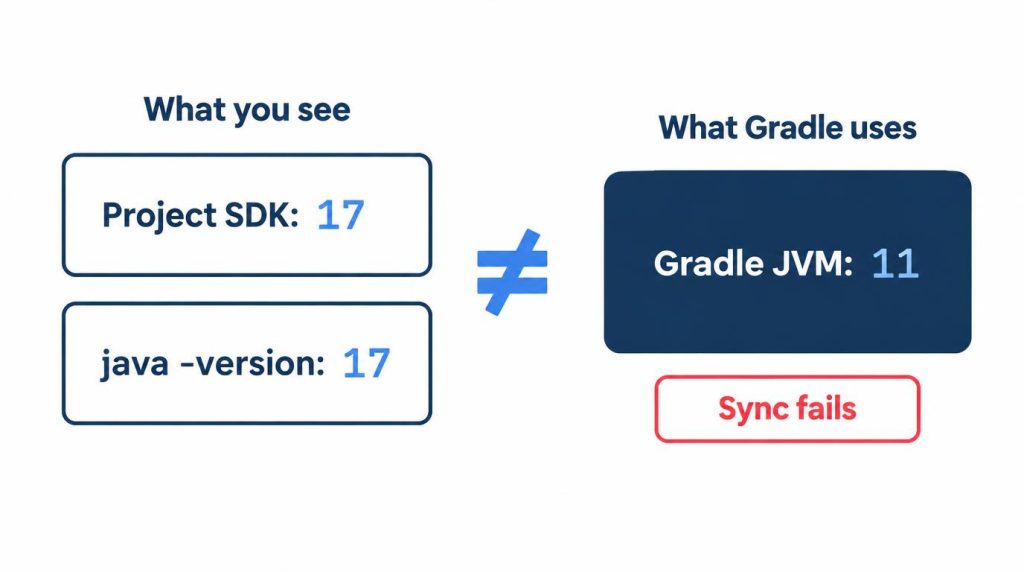
My Project SDK was 17, but IntelliJ’s Gradle JVM was 11. If you’ve already cleared caches and restarted and the error still comes back, this post is for you.
This one error cost me about an hour and ten minutes. Forty to 45 minutes of that went into the wrong place.
On this page
What “Could not run phased build action” means
A phased build action is one of the requests your IDE sends to Gradle while it loads your project. The IDE talks to Gradle through the Gradle Tooling API, and any failure on that connection ends in the same top-level message.
So the message alone can’t tell you the cause. The real cause is in the Caused by: lines underneath it.
In the Buildship issue tracker, one report shows a JVM mismatch as “Java home is different”. Mine was also a JVM mismatch, but I don’t remember what my Caused by: line said.
If your terminal build passes and the IDE shows red “cannot be resolved” errors instead of a sync failure, that’s a different symptom. I wrote that one up in STS “cannot be resolved to a type” but Gradle build passes.
My case: Project SDK 17, Gradle JVM 11
If the Project SDK is 17 but the Gradle JVM is 11, the IDE looks fine and only the sync keeps failing. That was exactly my situation.
The setup was IntelliJ IDEA Ultimate, a newly created Spring Boot project, and Gradle 8.x. It happened around 2024, and I no longer use that version combination.
I didn’t keep the exact Gradle minor version or the IntelliJ build number. The screens in this post come from a test Spring Boot project where I reproduced the problem later.
In the editor, it looked like a normal Java 17 project. java -version in the terminal also printed 17.
So the JDK wasn’t on my list of suspects at all.
Here’s where the hour went.
| Phase | What I did | Time |
|---|---|---|
| 1 | Logs and search | About 15 min |
| 2 | Trial and error | 40–45 min |
| 3 | Fixed the Gradle JVM | Under 10 min |
| Total | About 1 h 10 min |
Phase 1 was reading logs, searching, comparing project settings, and comparing the terminal with IntelliJ.
Phase 2 was dependencies, the wrapper, the daemon, and caches. The sync failed 6–7 times in that stretch.
Phase 3 runs from spotting the mismatch to switching to JDK 17 and getting a clean sync.
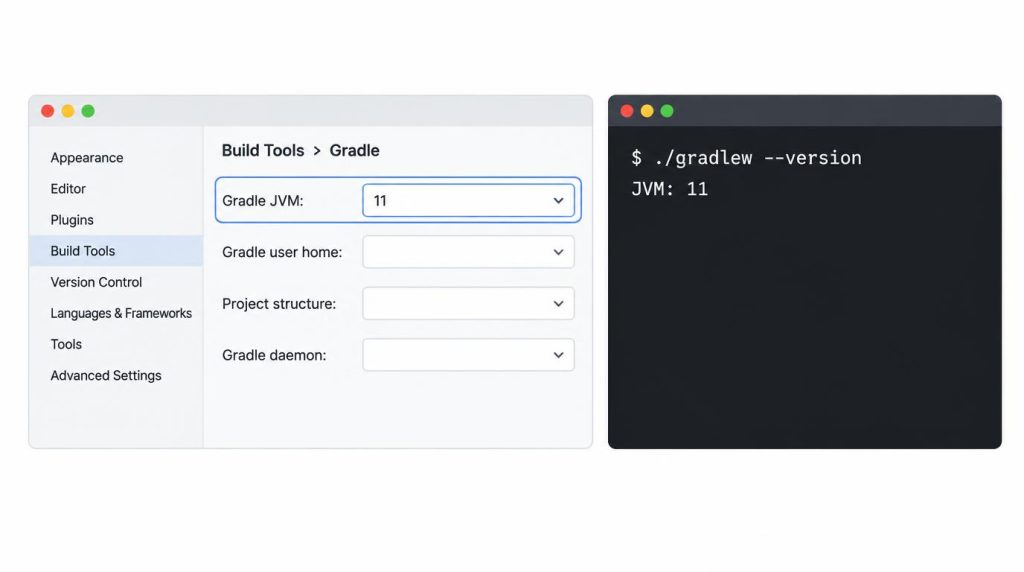
The clue was ./gradlew --version. It reported JVM 11, and IntelliJ’s Gradle JVM setting was 11 too.
It wasn’t a hard bug. It took long only because I’d filed the cause under the wrong category.
What I tried before the JVM (none of it helped)
It was a new Spring Boot project, and at first I took it for a dependency problem. I tried these, in this order:
- Removed the dependency I’d just added, then added it back
- Checked the Spring Boot plugin and dependency-management versions
- Checked
distributionUrlingradle-wrapper.properties - Stopped the daemon with
./gradlew --stop, restarted IntelliJ, and re-synced - Cleaned part of the cache and re-downloaded the distribution
- Ran IntelliJ’s Invalidate Caches / Restart
The last one was the most deflating. If the IDE was holding a bad Gradle state, I figured this would clear it. The exact same error came right back.
None of these had anything to do with the cause.
Why the cache shouldn’t be your first move
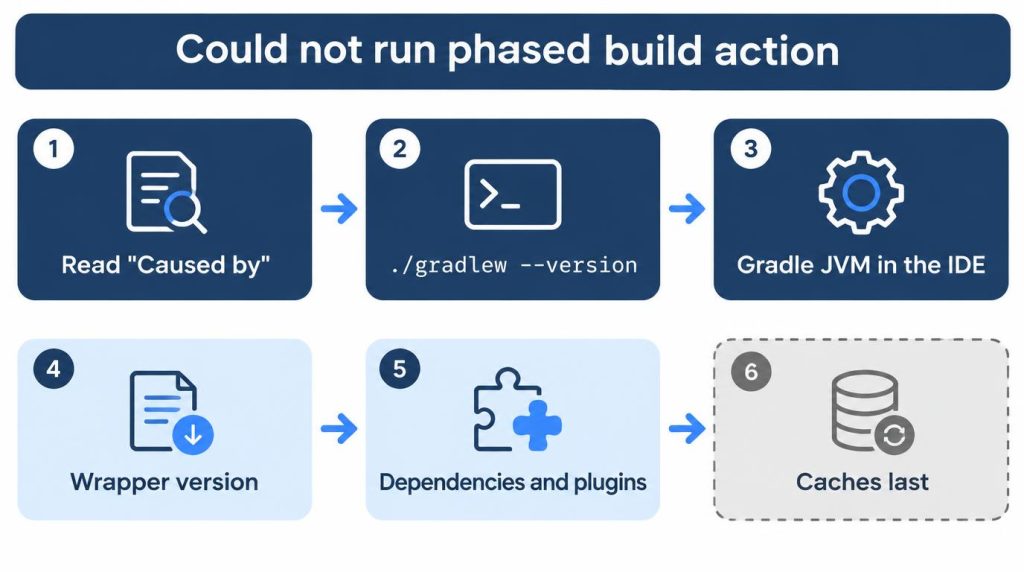
Before you clear caches or re-download the distribution, check which JVM Gradle is running on. The error is a top-level message, so nothing in it proves the distribution is at fault.
This is the order I’d check now:
- Read the
Caused by:details - Run
./gradlew --versionto see the JVM Gradle uses - Check the Gradle JVM setting in the IDE
- Check the wrapper version
- Check dependency and plugin compatibility
- Only then, caches and the distribution
This incident settled one thing for me: “clear the cache first” is no longer my first fix.
Which Java can run your Gradle?
The version gap matters more on newer Gradle. Per Gradle’s compatibility matrix (Gradle 9.8.2, checked November 1, 2026), Gradle 9.x needs a JVM between 17 and 27 to run. Gradle 8.x up to 8.14.x still runs on Java 8.
The project can also demand more than Gradle does. Spring Boot 4.1.2 requires at least Java 17 as of November 1, 2026. A Gradle JVM older than what the build needs is one way sync breaks while the editor still looks fine.
Where to check the Gradle JVM in IntelliJ IDEA
Go to Settings → Build, Execution, Deployment → Build Tools → Gradle. The Gradle JVM is a separate setting from the Project SDK, so the two can point at different versions.
That’s the trap. Check that the dropdown matches your Project SDK. IntelliJ IDEA Ultimate is the only IDE where I’ve hit this error myself.
The label has shifted over time. Older builds call it “Gradle JVM”; the IntelliJ IDEA 2026.2 help (August 6, 2026) calls the field “Gradle JVM criteria”.
How the two settings drift apart
JetBrains documents how the Gradle JVM gets picked. For a new project whose SDK is a JDK, the Gradle JVM equals the Project SDK.
When you open an existing project for the first time, IntelliJ checks org.gradle.java.home in gradle.properties first. Then it tries the JAVA_HOME environment variable. Last, it picks the JDK closest to the project’s Gradle version.
So a stale JAVA_HOME or an old org.gradle.java.home line can hand you a Gradle JVM that doesn’t match the SDK you see in the editor.
./gradlew --version doesn’t show everything
--version reports the JVM that launched Gradle. Per the Gradle Daemon docs, the daemon can still run on another JVM: one set by org.gradle.java.home, one requested by the IDE through the Tooling API, or one from Daemon JVM criteria.
In my case, --version and the IDE both said 11, so that was enough. If they disagree, look at the IDE setting first: that’s the JVM the IDE asks for when it syncs.
My fix was switching the Gradle JVM to JDK 17.
Android Studio and Eclipse Buildship
I’ve never used Buildship, and I haven’t reproduced this error in Android Studio. I haven’t checked where Buildship keeps this setting, so I’m leaving it out.
For Android Studio, Google’s docs (updated October 28, 2026) put it under Settings → Build, Execution, Deployment → Build Tools → Gradle, in the Gradle JDK dropdown. On macOS, Settings sits under the Android Studio menu.
How this differs from a CI build failure
A CI build failure comes from the runner’s JAVA_HOME or JDK setup. This one is a mismatch between the IDE’s Project SDK and its Gradle JVM.
The symptoms and where they show up differ, but the cause is in the same family. In a separate case, I trusted java -version and a CI build broke.
Since the IntelliJ incident, I always check three things together: java -version, ./gradlew --version, and IntelliJ’s Gradle JVM. One match isn’t enough for me.
Both incidents taught me the same thing. The Java you’re looking at and the Java Gradle actually uses can be different.
For a CI break from a different tool gap, see my notes on moving CI scripts from docker-compose to docker compose.
Sources
- Gradle Tooling API
- Gradle compatibility matrix
- Gradle Daemon: Daemon JVM criteria
- IntelliJ IDEA: Gradle JVM selection
- Android Studio: Java versions in Android builds (Gradle JDK)
Show 2 more sources
Related posts
I first wrote this in Korean on my blog: https://jjeongil.tistory.com/3555.