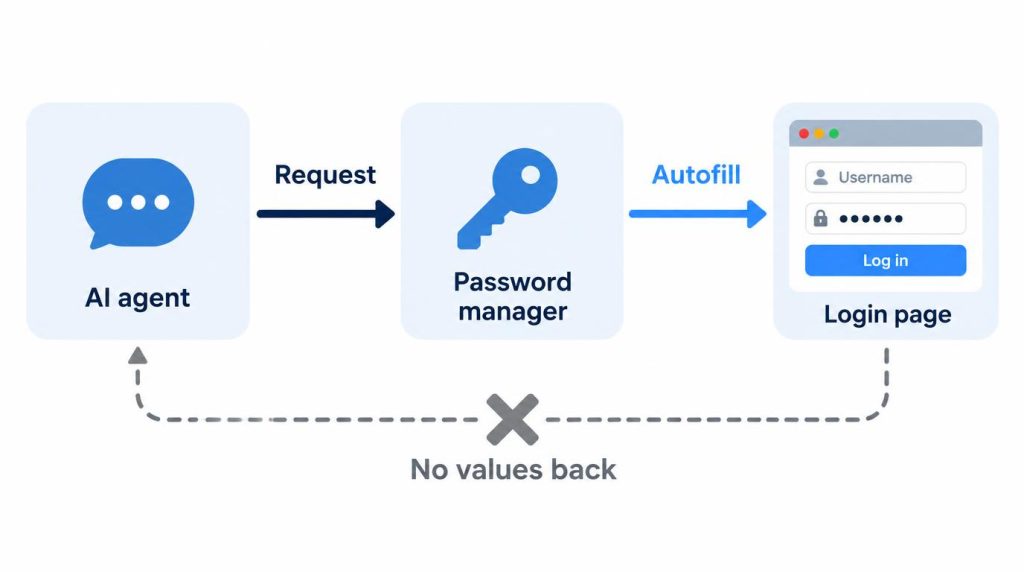
With 1Password for Claude, Claude only asks for a login, you approve it in a 1Password window, and the browser extension fills the form, so Claude never sees the password.
It’s a beta that runs only on a Mac, with the Claude desktop app, Claude in Chrome (Anthropic’s extension that lets Claude work in your Chrome) and a paid Claude plan (Pro, Max, Ultra, Team or Enterprise). Claude Code and Windows aren’t covered.
Every time I’ve handed Claude a login, the window has asked again, even on the same site the next day.
On this page
Before you connect: versions and two admin switches
You also need a 1Password account on an individual, family or business plan, with both the 1Password app and its browser extension.
| Your setup | Works? | Condition |
|---|---|---|
| Cowork, the desktop app’s mode for tasks Claude carries out | Yes | Open it with +New > Cowork |
| Google / Facebook sign-in | Yes | One extra step, in the Google section below |
| One-time codes (TOTP) | Yes | Stored in the Login item |
| Passkeys, cards, other items | No |
The app and the extension both need version 8.12.28 or later.
To check your versions, choose 1Password > About 1Password in the Mac menu bar, and in Chrome open the menu, then Extensions > Manage Extensions, and select Details under 1Password.
Chrome updates the extension on its own; for the app, turn on “Install updates automatically” under Settings > Advanced.
On a Team or Enterprise plan the feature is off until an Owner or Primary Owner (the admin roles) of your Claude organization turns it on: Organization settings > Claude in Chrome, then “Enable for your team” and “Password managers.”
On a 1Password Business account, an admin also signs in at 1Password.com, selects Policies in the sidebar, then Manage under Sharing and permissions, and turns on “Allow AI agents to autofill for users.” If 1Password never shows up in your Connectors list on a work account, send your admins those two paths.
The separate 1Password plugin for Claude Code handles secrets for your code; it doesn’t sign in to websites.
Connecting: three steps and one authorization
- Update the 1Password app and extension as above, and unlock the app.
- Install the Claude desktop app, then add Claude in Chrome from the Chrome Web Store and sign in to it with the same Claude account. In the desktop app, open Settings > Cowork and set Preferred browser to “Chrome (Claude in Chrome).” Without that, Cowork may use its own built-in browser, where your 1Password extension isn’t.
- In the Claude desktop app, select Customize in the sidebar, then Connectors, search for “1Password,” and click Connect.
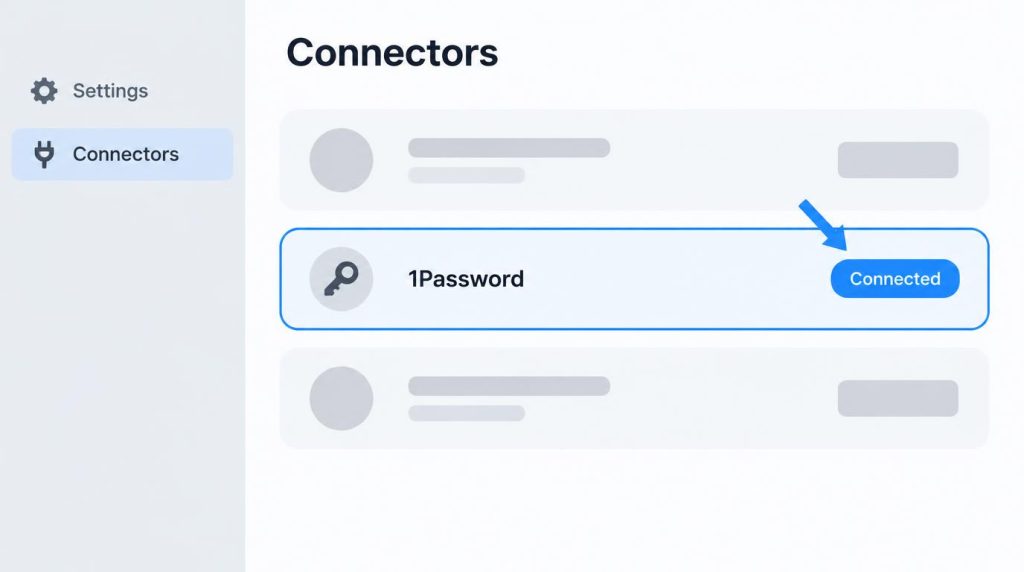
A 1Password prompt then asks whether to allow the connection; 1Password’s guide says you confirm it with Touch ID or your 1Password account password. This one-time authorization is a different layer from the window you’ll see at each login later.
If the app is locked, 1Password asks you to unlock it before that prompt, so step 1’s unlock only saves a step. Mine was already unlocked and connected on the first try.
Two signs tell you it worked. In Connectors, 1Password moves under Your connectors with the status Connected.
Then give Claude a Cowork task that needs a sign-in, such as checking your latest order on a shopping site: Claude should work in a Chrome tab, and a 1Password window should open with a suggested login.
Claude uses the preferred browser unless you name the other one in the task, and tells you if it has to switch. If no window opens, start with the stall section below.
What the approval window asks, and how far one approval goes
I’d assumed letting Claude log in for me meant pasting my password into the chat. It doesn’t. When Claude reached the login screen, a 1Password window opened right away, naming the site and the values it needed: username and password. You can approve, pick a different saved login, or deny.
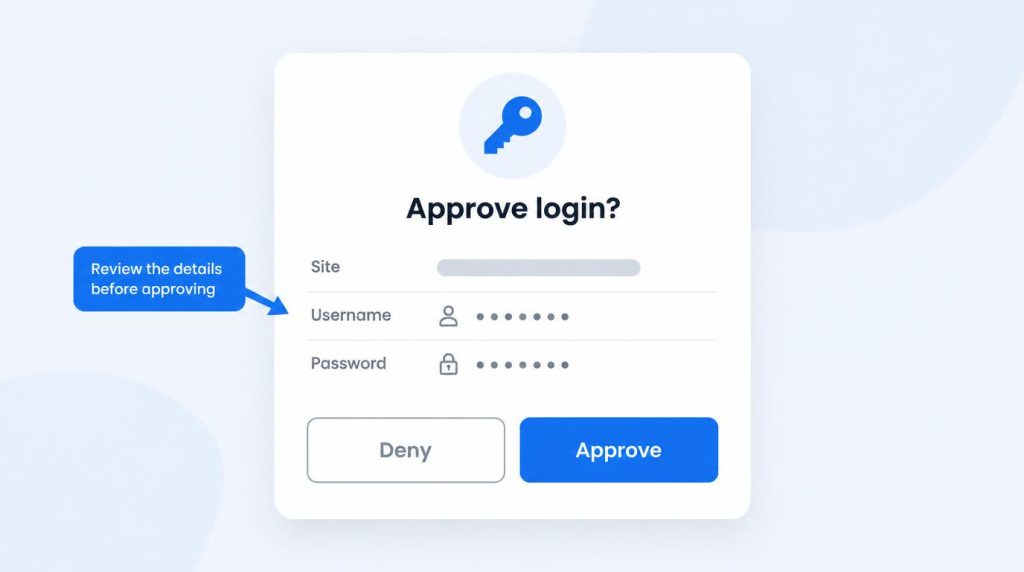
After I approved, the browser went to that login page on its own and 1Password filled it in with no wait I noticed, while Claude stayed out of the username and password fields.
Jobs that stay on one site need you only at that window. On a shopping and subscription service, Claude stayed signed in across pages to find my order history and account details without asking again, and that’s the job I’ve handed over most since: rechecking orders or billing after a session expired.
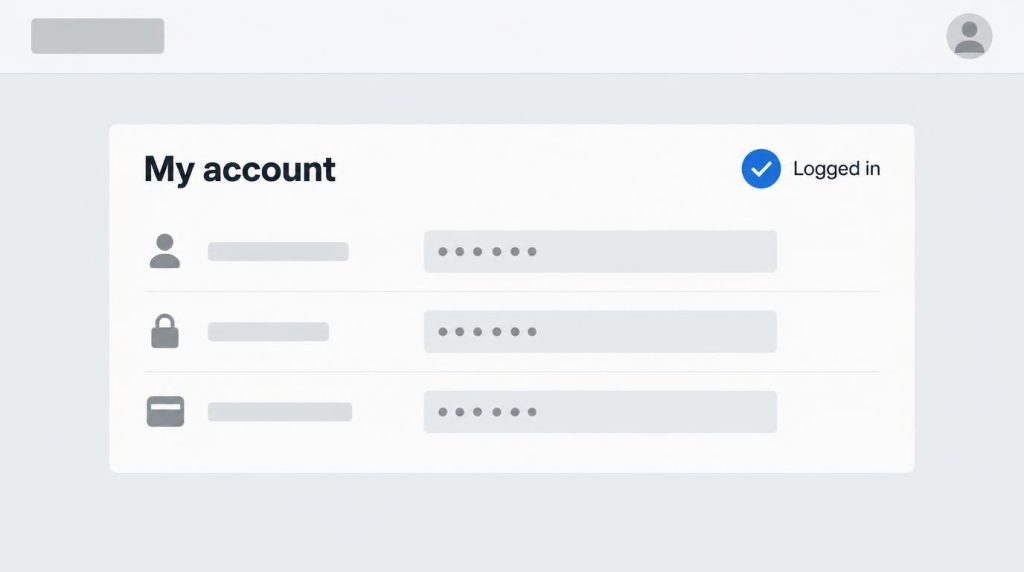
My one wrong guess was about how far a single approval goes. I expected one login hand-off to carry through every later lookup, but it covers one sign-in: page moves inside that live session asked nothing more, a job that moved between two sites asked twice, and a re-login after the session expired asked again.
I think that’s right, and I still press approve in the window each time. For a multi-site task, stay at the Mac until the logins are through.
When the hand-off stalls
Mine stalled once, right after an extension update. Claude asked for a login, the extension showed as not connected to the desktop app, and the request never reached the approval window. Locking and unlocking the 1Password app fixed it, and later updates haven’t brought it back.
When no window appears, lock and unlock the 1Password app first.
If the extension still shows as not connected, check its link to the app: click the 1Password button in Chrome’s toolbar, open the account menu at the top left, then Settings > General, make sure “Integrate this extension with the 1Password desktop app” is on, and restart Chrome.
If that doesn’t clear it:
| What you see | Try first | If it stays |
|---|---|---|
| A banner in Claude saying it couldn’t connect to 1Password, or Claude waits with no approval window | Click the Claude icon in Chrome’s toolbar to open its side panel (pin it from the puzzle-piece menu if it’s hidden), then retry. This is a user’s workaround: the approval prompt may be waiting in a Chrome window you can’t see | Send diagnostics |
Claude reports that its login request failed with relayUnavailable, even after the check above |
Send diagnostics; restarting again hasn’t cleared it for other users | Follow support’s reply |
| Wrong login suggested | Pick another saved login in the window, or deny | Make the item’s website match the sign-in URL |
To send diagnostics, unlock 1Password, choose Help > Send Diagnostic Report in the menu bar, then Open file location.
Email the .1pdiagnostics file with a short description of what Claude was doing to support@1password.com, or attach it to your reply if you’re already talking to support. Don’t hold off for an extension update; no fix for these failures has been posted.
A site you only enter with Google
The first time, 1Password had no Login item for that site, so Claude found nothing to fill and stopped.
1Password fills these sign-ins only with extension 8.12.34 or later and when the site’s Login item is linked to your Google login: open the site’s item in the 1Password app, select Edit, then Add More > Sign in with, choose your Google Login item and save.
With the item linked, I handed over the same job again. Claude got through to Google’s sign-in, and the email and password went in through the approval window. Then Google asked for a phone check with no field to fill, and I confirmed it on my phone.
So link the item only if you’ll be at the Mac when Claude signs in, or your Google account rarely asks for a phone or 2-step check. Mine asked, so I still don’t hand over sites that only take social sign-in.
What stays open after 1Password fills the login
The remaining risk is the live session after approval, not Claude holding your password: nothing in this design stops a logged-in session from being hijacked or steered to the wrong page.
Close Claude’s group of Chrome tabs as soon as the job is done, so Claude isn’t left driving a signed-in page; that also gives the extension back to you.
Until then the extension stays in what 1Password calls Agentic Mode, limited to the items you approved. The name made me expect one more feature to set up, but it switches on by itself when Claude takes over Chrome.
To remove the connection entirely, disconnect 1Password in the same Connectors list.
Cowork’s built-in browser, the one step 2 steers you away from, offers to import your sign-ins site by site. Imported sign-ins stay usable in later Cowork sessions, while a 1Password approval shows which item and why, every time.
I keep logins out of that browser because I want to see when I let each site in. I use it for pages that need no sign-in and skipped the import; mixing the two would leave me guessing which site sits on which side.
Payments and bank logins stay with me
1Password covers the login and nothing after it; payments have no such approval yet, so the line is mine. Claude reads order history and billing pages; I press the final order or transfer button.
Banks, brokerages and card companies stay off the list, since their logins add checks outside the password field and leave a session open. So do my email and work accounts, which hold the keys to other sites, and passkey-only sites. Reading is delegated; anything that moves money stays in my hands.
Sources
- Research note: where 1Password for Claude connections fail, with the official pages and release notes compared, loopnotes-lab, 2026-11-12
- Get started with connectors, Claude docs, checked 2026-11-12: Customize in the desktop app sidebar, then Connectors
- If 1Password isn’t working in your browser, 1Password Support, checked 2026-11-12: Settings > General > “Integrate this extension with the 1Password desktop app”, restart the browser
- Find the version numbers for 1Password and keep 1Password up to date in your browser, 1Password Support, checked 2026-11-12: About 1Password menu path, Chrome Details path, automatic updates
- Sign in with Google, Apple and other providers, 1Password Support, checked 2026-11-12: Edit > Add More > Sign in with
Show 10 more sources
- Send a diagnostics report, 1Password Support, checked 2026-11-12: Help > Send Diagnostic Report, support@1password.com
- 1Password for Claude, 1Password press release, 2026-07-16: launch announcement
- 1Password for Claude, 1Password Support, published 2026-11-04 (checked 2026-11-12): requirements, plans, Login items and TOTP, provider sign-in condition, Agentic Mode, wrong login, disconnect, Business policy (1Password.com > Policies > Sharing and permissions > Manage), Touch ID authorization, Cowork test step
- 1Password browser extension release notes, 1Password, checked 2026-11-12: Claude lines in 8.12.32 (2026-08-11) and 8.12.34 (2026-08-25), none through 8.12.44 (2026-11-03)
- Get started with 1Password for Claude, Anthropic Help Center, checked 2026-11-12: beta, macOS, paid plans including Ultra, Team/Enterprise admin path (Owner or Primary Owner)
- Claude Code plugin, 1Password Developer docs, checked 2026-11-12: separate beta plugin for secrets in Claude Code
- Agentic autofill for Claude always fails with relayUnavailable, 1Password Community, opened 2026-07-18, latest reply 2026-10-16: user report, no fix posted
- Get started with Claude in Chrome, Anthropic Help Center, checked 2026-11-12: Chrome Web Store install, sign-in, pin and open the side panel from the toolbar icon
- Use the built-in browser in Claude Cowork, Anthropic Help Center, checked 2026-11-12: Settings > Cowork > Preferred browser, how Claude picks a browser, site-by-site login import, banking/email/SSO unchecked by default, sign-ins available in future Cowork sessions on that computer
- 1Password credential-request (Claude in Chrome) fails with ‘not_connected’ despite healthy 1Password app/extension, anthropics/claude-code GitHub issue #79976, opened 2026-07-22, auto-closed as stale 2026-11-08 with no maintainer fix: user reports of
not_connectedand the “Couldn’t connect to 1Password” banner, consent prompt sent to an unseen Chrome window, side-panel workaround
Related posts
- Claude Code or Codex Keeps Asking for Permission? 4 Causes
- Antigravity CLI Always Proceed Still Asks? 5-Run Test
- Codex CLI npm install Fails? It’s Sandbox Network Access
- AI Agent Ran git commit –no-verify? Make CI the Real Gate
I first wrote this in Korean on my blog: https://jjeongil.tistory.com/3523.