Yes, Antigravity CLI has Remote Control. Run /remote-control inside an agy session, open the link it prints on your phone, and sign in with the same Google account.
From there you can read the conversation, give a new task and answer pending approvals. Close the terminal and that connection ends. For an always-on machine, you need agy remote-control start instead.
Antigravity CLI Remote Control is a remote monitoring feature for the agy terminal agent. It lets a browser or phone follow a running CLI session.
Installing it isn’t hard. The trouble starts after that. The agy command suddenly isn’t found, the session vanishes from your phone, and you wonder whether the screen is really live. I’ve written these up in the order I ran into them, as of September 25, 2026. Official changes through November 3, 2026 are marked by date.
On this page
- Fixing agy: command not found after install
- Connecting from your phone: what I tested
- Can you change CLI settings from the browser?
- Why did my instance disappear after I closed the terminal?
- /remote-control not showing up, or access denied
- What I haven’t tested
- Does Remote Control mean you can drop approvals?
- FAQ
Fixing agy: command not found after install
agy: command not found usually isn’t a failed install. In most cases, ~/.local/bin just isn’t on your PATH.
The install script finished normally. Then I opened a new terminal, typed agy --version, and got command not found.
My first guess was that the install had broken partway through. So I installed again and got the same result.
The binary was sitting at ~/.local/bin/agy the whole time. That directory simply wasn’t in my shell’s PATH, and echo $PATH confirmed it.
A reinstall can’t fix that, because the file is already there.
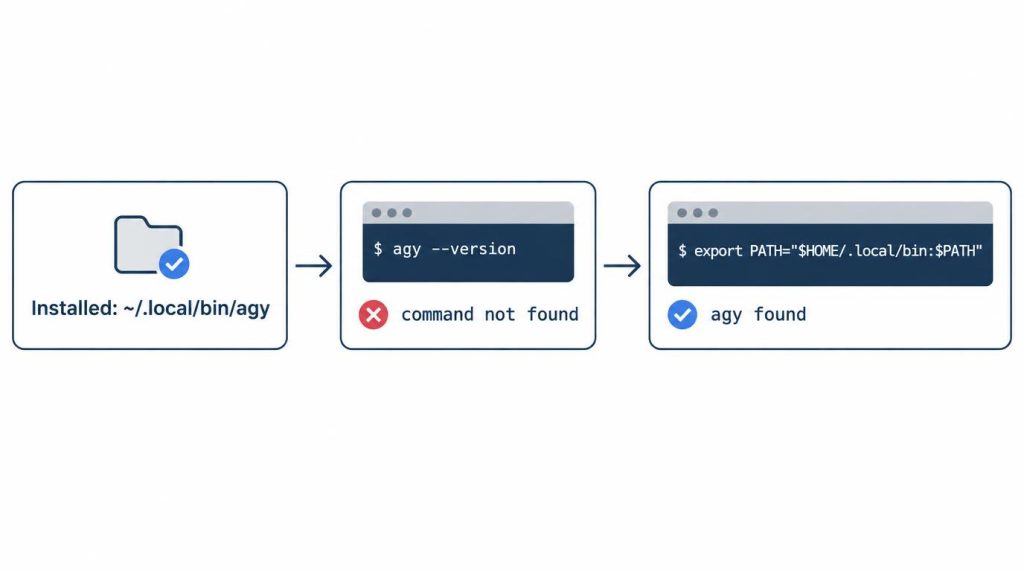
The fix on macOS or Linux with zsh: add export PATH="$HOME/.local/bin:$PATH" to ~/.zshrc, then run source ~/.zshrc. On bash, the same line goes in ~/.bashrc. After the reload, agy was recognized right away.
Including the reinstall attempt, this took me about 10 minutes.
The official troubleshooting page lists the same symptom and fix. That tells me it’s a common first hurdle with this tool.
On Windows, the same page has you add the CLI folder to your user PATH with a PowerShell command, then restart the terminal (checked November 3, 2026).
Same error inside WSL2
I hit a similar mix-up on WSL2 (Windows 11 + Ubuntu). In the Windows terminal, agy looked installed. Inside WSL, I got agy: command not found.
I had treated Windows and WSL as one install environment. So I mixed up the PATH and where the command actually ran.
Once I treated WSL as a separate Linux environment, I fixed where Node and agy were installed inside it. The error went away.
I also keep repositories on WSL’s Linux filesystem (~/...), not /mnt/c/.... Later work was more stable for me that way.
Connecting from your phone: what I tested
Running /remote-control in the prompt box prints an access link. You can also start the CLI with agy --remote-control.
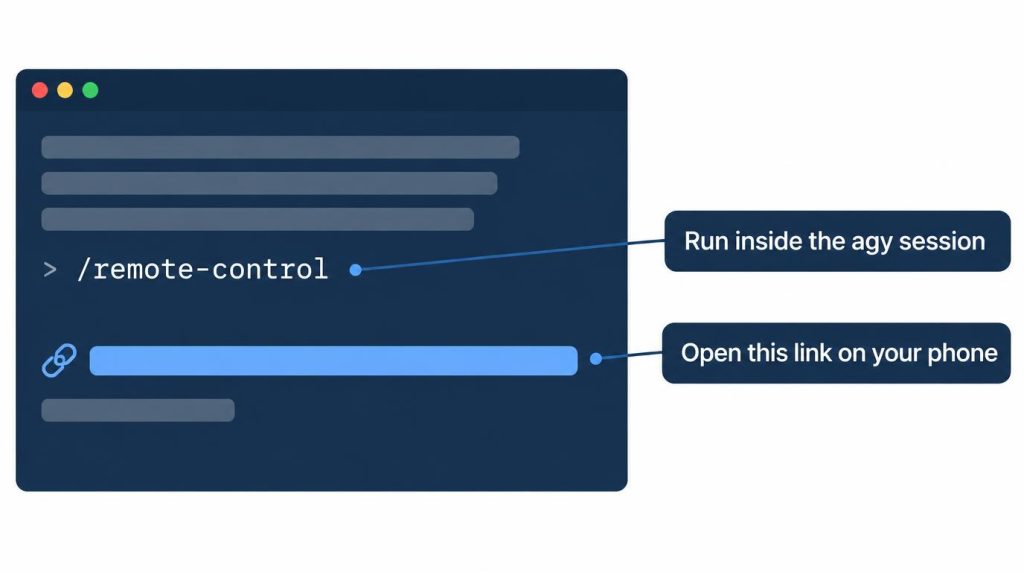
I opened that link in a phone browser and signed in with my Google account. The conversation the CLI was having right then showed up.
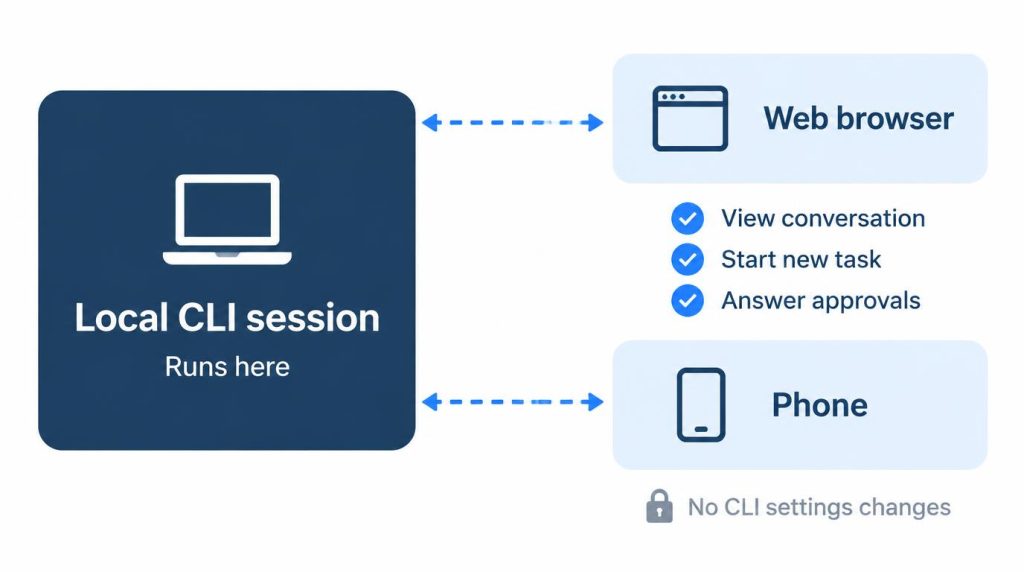
I checked three things myself: reading the conversation, answering a pending approval and giving a new task.
The Remote Control docs also mention reviewing implementation plans and inspecting artifacts. I know those two only from the docs.
| Action | From remote (my test, 2026-09-25) |
|---|---|
| View conversation and progress | Yes |
| Give a new task | Yes |
| Answer pending approvals | Yes |
| Change CLI run mode or permissions | No |
The docs also say tool confirmations (y/n) can be answered from either the terminal or the browser. Prompts sent from the phone show up in the terminal too.
How you set the run mode and permissions on the CLI side is a separate question. I covered that with a different tool in Codex CLI approval modes vs sandbox.
Can you change CLI settings from the browser?
In my September 2026 test, settings stayed in the terminal. The web side only continued the conversation or answered approvals.
Settings in the terminal, responses on the web. I found that split clear.
The official record has moved since then. The changelog for CLI v1.3.4 (October 13, 2026) says the browser’s Settings modal now opens for CLI sessions. It shows the settings the CLI actually uses, including project and global permissions.
CLI v1.4.4 (October 21, 2026) also lists Remote Control Settings as one place to choose Auto mode.
The Remote Control docs page still said on November 3, 2026 that you can’t change settings from the remote web interface. I haven’t retested on a newer version. So the clean “settings stay in the terminal” split may not hold on your install.
If you want to decide which actions get auto-approved before you leave your desk, I keep a starter list in how to stop coding agent permission prompts.
Why did my instance disappear after I closed the terminal?
/remote-control lives and dies with the CLI session. agy remote-control start runs as a background daemon that doesn’t depend on any open terminal.
I once treated the two as the same thing, and it caught me off guard.
I was connected with /remote-control and everything worked. Then I closed the terminal window.
A few minutes later, I opened the dashboard on my phone. That instance was gone from the list.
My first suspicion was the network or an unstable session. Thinking it over, it was normal behavior.
/remote-control is session-scoped. When the CLI process ends, its tunnel closes too. The docs say the same: exiting, or typing /remote-control off, ends the tunnel and removes the instance from the dashboard.
/remote-control |
agy remote-control start |
|
|---|---|---|
| Mode | Interactive | Headless daemon |
| Scope | One CLI session | Whole machine |
| Registration | None | LaunchAgent, systemd, Scheduled Task |
| After closing terminal | Ends | Keeps running |
The registration column is by OS: a LaunchAgent on macOS, a systemd user service on Linux, a Scheduled Task on Windows.
Restart behavior also differs by OS. Per the Remote Control docs (checked November 3, 2026), the Linux daemon starts at boot without a login. On macOS it starts at login and doesn’t survive a sign-out. On Windows, starting at boot needs start run from an Administrator prompt.
Two more commands help here. agy remote-control status shows this machine’s instance name, and agy remote-control stop stops and unregisters the daemon.
When I use the daemon
Since then, this is the rule I use. If I only want to follow the current session for a bit, I use /remote-control. If I’ll need to get back into that machine remotely later, I use agy remote-control start.
I run the daemon only on a test machine with isolated worktrees for personal repos and internal POCs. I don’t connect company production servers to Remote Control.
/remote-control not showing up, or access denied
Check three things: your CLI version, your account policy and how you signed in. As of September 25, 2026, I ran into three limits myself.
Settings. I couldn’t change CLI-controlled settings from the web. That part has changed on paper since, as covered above.
Version. The feature is recent. The changelog shows session-scoped /remote-control arriving in CLI v1.2.6 on September 18, 2026; the daemon subcommands came a bit earlier, in v1.2.0 on September 10. On an older install, /remote-control may not appear at all, so check agy --version before suspecting your account. The latest CLI was v1.4.10 (October 29, 2026) when I checked on November 3.
Account policy. On an account where an organization policy has turned it off, you can see “Remote control is not enabled for your account.” The docs say to contact your workspace administrator or check that your plan supports it.
One more cause comes from the changelog, not from my setup. Since v1.3.3 (October 10, 2026), signing in with Application Default Credentials (AGY_ADC_AUTH) hides /remote-control, because Remote Control doesn’t support ADC yet.
If a daemon machine is missing from the dashboard, the docs suggest running agy remote-control status and fixing sign-in. The daemon uses your CLI sign-in, and the dashboard needs the same Google account.
What I haven’t tested
- Several machines on one dashboard. I haven’t registered more than one and switched between them. The docs now describe naming each daemon with
agy remote-control start --name "my-workstation". - Phone push notifications. The docs say you can add the web app to your home screen to get notified when an agent finishes or needs input. I’ve never received one.
- The sync bug report. A Google AI Developers forum thread reports CLI sessions and Remote Control chats showing different things. I haven’t run into it.
I take all three as signs the feature isn’t fully stable yet. The changelog also lists later fixes: CLI v1.4.2 (October 18, 2026) fixed conversation history not showing in daemon mode, and v1.4.4 fixed several phone layout issues.
Does Remote Control mean you can drop approvals?
In my view, Remote Control doesn’t remove approvals. It lets you step away from your desk while an approval is waiting.
Having it doesn’t mean I’ll run Antigravity as an unattended coding agent right away. I think its biggest value isn’t “keep the agent working while I’m out.” It’s “let long tasks keep running locally, and let a person step in when needed.”
Until now, the trade-off was that keeping approvals on slows you down. I measured the time difference between auto-execution and approval mode in my five-run test of Antigravity CLI permissions. In approval mode, 4 commands and changes in total stopped before running, which gave me a chance to look at them again.
Remote Control changes that trade-off. I no longer have to sit at my desk waiting for the approval button, so keeping approvals is less of a hassle.
So I think Remote Control made it easier to keep request-review on, rather than widening auto-approval.
I rate it as “stepping away from the desk while keeping the approval loop”, not as “handing my dev PC over to AI remotely.” I still don’t run an always-on agent with production credentials and broad auto-approval as a Remote Control daemon.
My rule is simple. Being able to see it remotely and letting it run freely remotely are two very different things.
FAQ
Is there an Antigravity Remote Control app for Android or iPhone? The Remote Control docs describe a web dashboard. On a phone you can add that web app to your home screen.
How do I turn Remote Control off? In a session, type /remote-control off or exit the CLI. For the daemon, run agy remote-control stop.
Sources
- Remote Control | Google Antigravity Docs: interactive vs daemon, OS registration and restart behavior, remote actions, error message, naming, sign-in (checked 2026-11-03)
- Antigravity Changelog: CLI v1.2.0, v1.2.6, v1.3.3, v1.3.4, v1.4.2, v1.4.4, v1.4.10 Remote Control entries (checked 2026-11-03)
- Troubleshooting | Google Antigravity Docs: the
agy: command not foundPATH fix for macOS, Linux and Windows - Google AI Developers forum: Remote Control sync report: a report that CLI sessions and Remote Control chats don’t match
Related posts
- Antigravity CLI Always Proceed Still Asks? Permissions Tested
- Codex CLI npm install Fails? It Was the Sandbox, Not npm
- AI Agent Used git commit –no-verify: Why I Re-Check in CI
- Stop Claude Code, Codex, Antigravity Asking for Permission
I first wrote this in Korean on my blog: https://jjeongil.tistory.com/3570.